
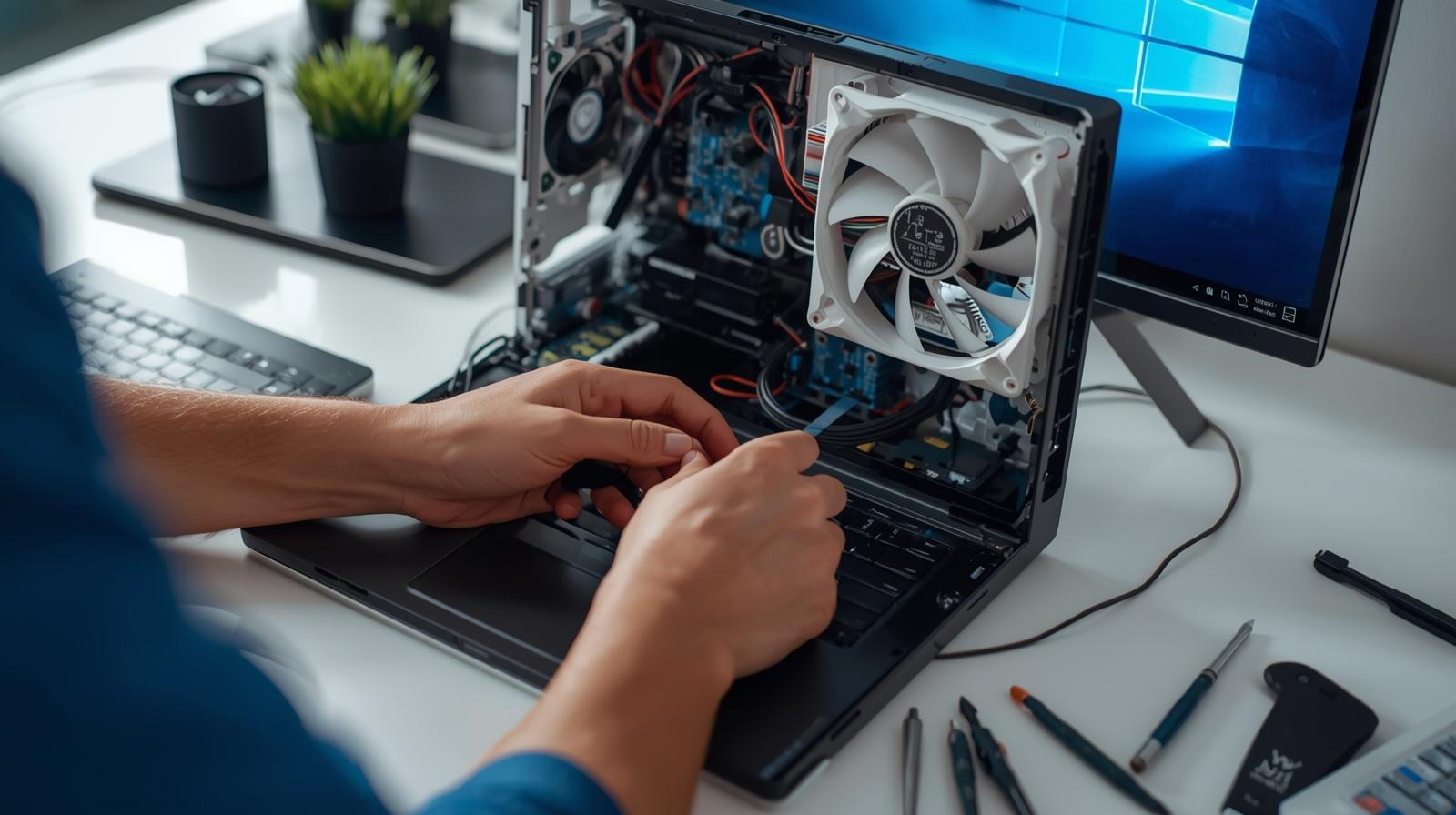
Repairing aio Fans Stopped Working Windows 11: A Step-By-Step Guide
When using Windows 11 and depending on an all-in-one (AIO) liquid cooler to keep your CPU cool, it can be frustrating to experience a problem where your AIO fans stopped working Windows 11. AIO liquid coolers play a very important role in ensuring that the temperatures are kept at the optimal levels and that the high-performance PCs do not overheat and hence to throttle. In case your AIO fans are broken and your CPU temperature reaches high levels in a short period of time, your system may become unstable, and your hardware may be damaged. This paper will take you through the troubleshooting and the process of correcting this problem step-by-step.
Understanding the Issue with Aio fans not working windows 11
Aio fans not working windows 11is a common term that is often used to refer to a scenario when the fans on your AIO cooler are not turning when you upgrade or update to windows 11. This can have several reasons and they may include:
- Software or Driver Conflicts: Sometimes Windows 11 upgrades might conflict with the fan controller software such as Corsair iCUE, NZXT CAM or ASUS AI Suite.
- BIOS/UEFI Options: Fan connectors of motherboard BIOS can be improperly set up.
- Hardware Issues:Slack cables, broken fans, pump in the AIO cooler itself.
- Power Supply Problems: Fans may receive inadequate power in case the PSU is faulty or the motherboard header is inadequate in current supply.
Coming up with adequate solutions to the issue of aio fans stopped working windows 11 requires one to understand its underlying cause.

Step 1: Check for Physical Connections
The simplest and most fundamental one is to be sure that your AIO cooler is well-connected:
- Ensure that the pump is installed on the CPU_FAN or PUMP port at the motherboard.
- Look and see whether the fans were inserted correctly in AIO unit or the motherboard fan headers.
- Ensure that the cables do not loose or damage.
There are cases when such a solution is as simple as reconnecting a cable that can have fallen loose during the installation or maintenance.
Step 2: Check BIOS/UEFI Settings
Windows 11 does not directly lead to fan failure but fan behavior is usually determined by the BIOS settings:
- Reboot your computer and get into BIOS/ UEFI (by pressing DEL or F2 at start up).
- Go to the Hardware Monitor or Fan Control section.
- Make sure that your CPU fan or AIO pump headers are enabled and set to PWM or DC mode as necessary.
- In case your fan curves are too low, increase them to make sure that fans begin to rotate at idle temperatures.
Many problems with “aio fans stopped working windows 11” can be solved by correct BIOS configuration.
Step 3: Install Drivers and software updates
A large number of AIO coolers are controlled by proprietary software to regulate the speed of fans:
- Make sure you check for any potential updates for your motherboard chipset drivers.
- Acquire the suitable AIO control software (Corsair iCue, Nzxt Cam).
- Ensure the software version supports Windows 11.
One of the most common causes of the issue is the incompatibility or old drivers that might result in the appearance of the problem of aio fans stopped working windows 11.
Step 4: Manually Test Fan Operation
To rule out hardware failure:
- Switch off your PC and unplug it on the wall.
- Unplug the fan connectors of the motherboard and plug them into a 12V source or another working connector.
- On the one hand, it is possible that the motherboard or software set is the problem, in case the fans rotate.
- In case they are not rotating, it might be necessary to replace the fans or the AIO.
Manual testing is also crucial to the diagnosis of the problem being correctly issued rather than just a guess, which is essential in the case of aio fans stopped working windows 11.
Step 5: Test windows 11 power settings.
Fan control may not always cooperate with windows 11 power management:
- The open control panel Power options.
- Make sure that your power plan is balanced or high performance.
- Sturn off any fan control options in windows that can be conflicting with AIO software.
Conflicts that lead to aio fans stopped working windows 11 may be solved by adjusting power settings.
Step 6: Clean Software Reinstallation
In some instances the corrupted settings of your AIO fans do not allow them to work:
- Buy out the AIO fan control software.
- Reboot your system.
- Get the other version of the software on the webpage of the manufacturer.
- Install it fresh and set up your fan curves.
This command usually corrects difficult problems linked to windows 11 aio fan stopped.
Step 7: Update BIOS/UEFI
A version of BIOS that is outdated may conflict with the control of fans:
Go to the website of your motherboard manufacturer and get the newest update of the BIOS.
Update safely following the instruction of the manufacturer.
Restart BIOS with the update to default values.
It has been noted by many users that updating of BIOS fixed the problem of aio fans stopped Windows 11 without any hardware replacement.
Step 8: Check for Pump Failure
If your fans still don’t spin:
- Listen for the pump. A running AIO pump will tend to produce low humming sound.
- When the pump is not in operation then it might not be the fans but the cooler itself.
- Change AIO unit in case of pump failure.
Pump failure is not very frequent but imperative to detect in cases of aio fans stopped working windows 11.
Step 9: Seek Professional Help
In case the above steps fail to work:
- Contact manufacturer of AIO.
- Give them your system specifications, AIO model and steps that you have already attempted.
- They are able to troubleshoot or even provide a replacement in case of warranty.
The quickest line of attack toward the solutions to aio fans stopped working windows 11 problems is sometimes professional guidance.
Step 10: Prevention of Maintenance
To avoid future problems:
Have AIO fans and radiator dusted out on a regular basis.
Check cables and connections periodically.
Measure the fan execution with AIO software.
Not until your AIO software product approves of it, do you need to install Windows 11 updates.
An example of routine maintenance that can be done to avoid reoccurrence of the error aio fans stopped working windows 11.
Conclusion
Windows 11 AIO fan problems can be particularly stressful for high-performance PC users. Stress troubleshooting (physical connection, BIOS, software, individual fan functionality) should get most cooling systems back into working order.
Hardware replacement can be required in case of rare cases, most problems are software-based or configuration related. Being proactive through update and maintenance will make sure that your AIO cooler is running efficiently and your CPU is cool and your system is stable.
FAQs
My AIO fans have ceased to work after installing Windows 11?
AIO fan control software or motherboard drivers may conflict with windows 11 updates and cease the use of fans.
What do I do to check whether my fans of AIO are functional?
To test whether the fans are spinning you can connect them by hand to either a 12V power supply or any other active fan header.
Is AIO fan failure prompted by BIOS settings?
Yes, wrong fan header mode (PWM/DC) or disabled headers can stop fans from spinning.
Do I have to change my AIO cooler in case the fans do not work?
Only when its manual test demonstrates that the fans and the pump cannot be used. The problem is often software related.
What will I do to avoid windows 11 aio fans stopped working in future?
often empty and clean your coolerl clean and update your software and check your fan connections to keep the issues at bay.