
How to Create a Subdomain in cPanel: Complete Step-by-Step Guide for Beginners
In case you have a site and you wish to better structure your materials or you would like to have a separate section of blogs, shops, or other services, then a subdomain is ideal. Subdomains are independent components of your main site and can assist you in growing without having to buy a new domain. Here, we are going to discuss all that you need to know about how to create a subdomain with cPanel, which is a popular web hosting control panel.
We will also cover login, managing hosting, testing your subdomain, and installing WordPress, in case of any necessity. This is a simple tutorial that is easy to follow.
What is a Subdomain?
A subdomain is simply an addition of a prefix to your main domain name. It works like an independent site or subdomain in your primary domain.
Example:
- Main domain: example.com
Subdomains:
- blog.example.com (for blogs)
- shop.example.com (in case of e-commerce)
- support.example.com (to support, or frequently asked questions)
Why use subdomains?
- Arrange information:Divide the content into such parts as blog, store, or forum.
- Test new functionalities:Test experimental applications without impacting your main site.
- SEO management:Reach out to other keywords and audiences.
- Easily manageable:Manage several projects in a single domain and hosting account.
Step 1 – Choose a Hosting Provider and Access cPanel
You will need to have a hosting account before you can create a subdomain. Well-known hosting services are Bluehost, HostGator, SiteGround, and others. Hosting also provides access to cPanel, which is the control panel that is used to manage domains, subdomains, files,s and databases.
Steps to access cPanel:
- Enter your hosting account.
- You will find the cPanel in your dashboard.
- Click cPanel and give your credentials (where necessary).
Tip:Open your cPanel login URL in Firefox and bookmark it so that you can easily access it later.

Step 2 – Navigate to the Subdomains Section
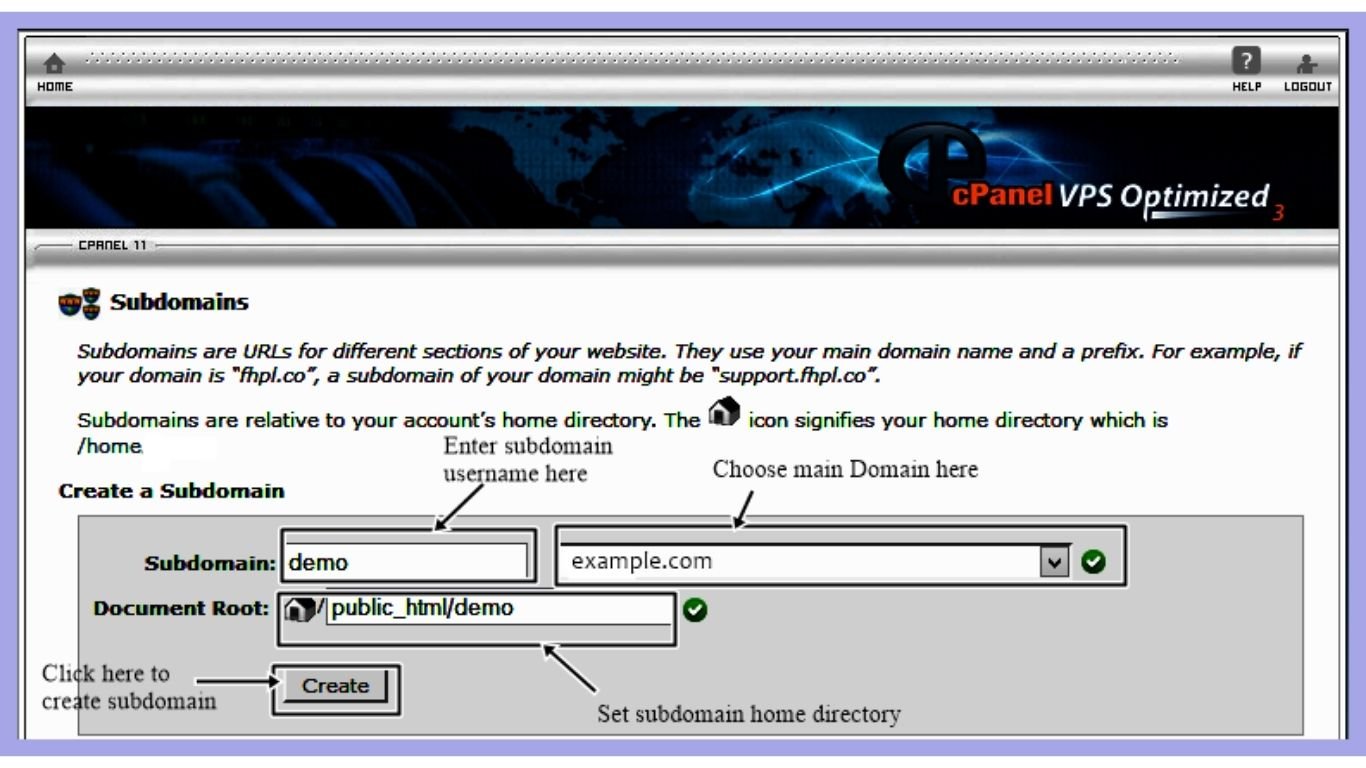
After you are in cPanel, go down to the Domains section. And in this case, there will be a choice of Subdomains. Click it to get into the subdomain management page.
The features of the subdomain management page:
- Subdomain field:Type in the name of your subdomain (e.g., blog).
- Domain drop-down: Select your primary domain in case of hosting more than one domain.
- Document root:This is the directory where you will store the subdomain files on your server (cPanel does this automatically; usually it is public_html/blog).
Step 3 – Create Your Subdomain
It has taken you into the Subdomains section, and now it is time to create your subdomain.
- Type in the subdomain name in the box given (e.g., blog).
- Choose your domain of choice in the dropdown.
- Check the document root. You may leave it default or make it custom.
- Click Create.
cPanel will take care of your request and automatically create the folder with the subdomain. You will also receive a confirmation message after it has been created successfully.
Step 4 – Test Your Subdomain
Once you come up with your subdomain, you must ensure that the subdomain is functioning correctly.
- Open your browser.
- Enter your subdomain name (e.g., blog.example.com).
- Either you should see a default cPanel page or what has been uploaded.
Note: Your DNS will take several minutes to propagate. This is natural, particularly for newly generated subdomains.
Step 5 – Upload Files or Install WordPress on Your Subdomain
Once you have created your subdomain, you can either put files there or install a site application. WordPress is also installed by many people in order to run blogs, portfolios, or mini-sites. Here’s how to do it:
Upload Files:
- Using the cPanel, go to File Manager.
- Access the document root folder of your subdomain (e.g., publichtml/blog).
- Directly upload your HTML, CSS, or PHP files.
Install WordPress:
- On cPanel, locate the Softaculous Apps Installer (or other).
- Click on WordPress and go on to install.
- Select your subdomain from the dropdown menu.
- Enter the site name, username, and password.
- Click Install and wait till WordPress installation is complete.
When installed, you should visit the subdomain of your WordPress blog and enter the address blog.example.com/wp-admin.
Step 6 – Secure Your Subdomain with SSL
SSL certificates are used to encrypt and secure your information as well as protect your site. The majority of hosting companies offer free subdomain certificates. In cPanel:
- Go to SSL/TLS or Let’s Encrypt SSL.
- Select your subdomain.
- Click Install.
A couple of minutes later, you will be able to access your subdomain through the URL of https://blog.example.com.
Step 7 – Best Practices for Subdomains
To extract the maximum from your subdomains, do the following:
- Rational naming:Name them based on the content (e.g., shop, blog, support).
- Unique content:Also, maintain unique content to prevent problems of SEO duplication.
- Automatic backups: Back up the subdomain file in the same way as your primary site.
- Track traffic and performance: Track performance and traffic with analytics tools.
- Connection to the main site:Have your main site connected to the subdomain so that people can easily navigate.
Conclusion
The process of creating a subdomain within cPanelis easy and very useful when it comes to structuring your own website, hosting a variety of applications, or testing a new feature. With this step guide, you can:
- Know what a subdomain is and why it comes in handy.
- Enter cPanel and go to the subdomains.
- Create a subdomain and give a document root.
- Upload files or install WordPress.
- Encrypt it using SSL and control it effectively.
Subdomains are an effective weapon for any owner. And whether you are running a blog, an e-commerce site, or a support portal, you will find it easier to create and manage subdomains, which will provide you with flexibility, a better structure, and better performance of the webpage.
Pro Tip: Subdomain names should always be descriptive, the content should be original, and performance should be monitored in order to make the best out of them.
FAQs
Is it possible to establish several subdomains?
Yes, the majority of hosting accounts permit unlimited subdomains.
Will my subdomain have an impact on the SEO of my main domain?
Subdomains are considered independent sites. They will not hurt your primary location as long as they are handled appropriately.
Can I delete a subdomain?
Sure, you can remove it in cPanel at any time; however, it will delete all the files within its folder.
Shall I be able to generate email accounts within my subdomain?
Absolutely! An example is the info@blog.example.co, and this can be done via the cPanel.
Do subdomains cost extra?
No, subdomains are part of your hosting package and are not extra.