
Safe Mode Windows 11: The Ultimate Guide
The operating systems of the modern-day computing world have become more sophisticated, providing a large number of features and capabilities. The newest release of Windows 11 by Microsoft is not an exception. Though it offers improved performance, looks, and security, at times the users encounter problems in the system that cause the system to run smoothly. This is the place of the safe mode in Windows 11, which is an important feature that is made to assist the user in troubleshooting and fixing issues.
Safe mode Windows 11 is basically a diagnostic boot mode, which enables your system to boot into a limited services and drivers state, as well as essentials. In such a manner, it assists in isolating software and hardware problems that can lead to instability, crashes, or other malfunctions. A problematic driver, corrupted system file, or incompatible software are only a few of the issues that can be managed in safe mode to track down the root cause.
It is one of the main reasons why the user may resort to using safe mode in Windows 11 when the system cannot be restarted. The safe mode does not allow third-party applications and unnecessary services to start up like a normal startup. This not only accelerates the troubleshooting process but also minimizes the chances of conflicts that are likely to occur due to the installation of the new software or the updates.
To open safe mode in Windows 11, follow the instructions below
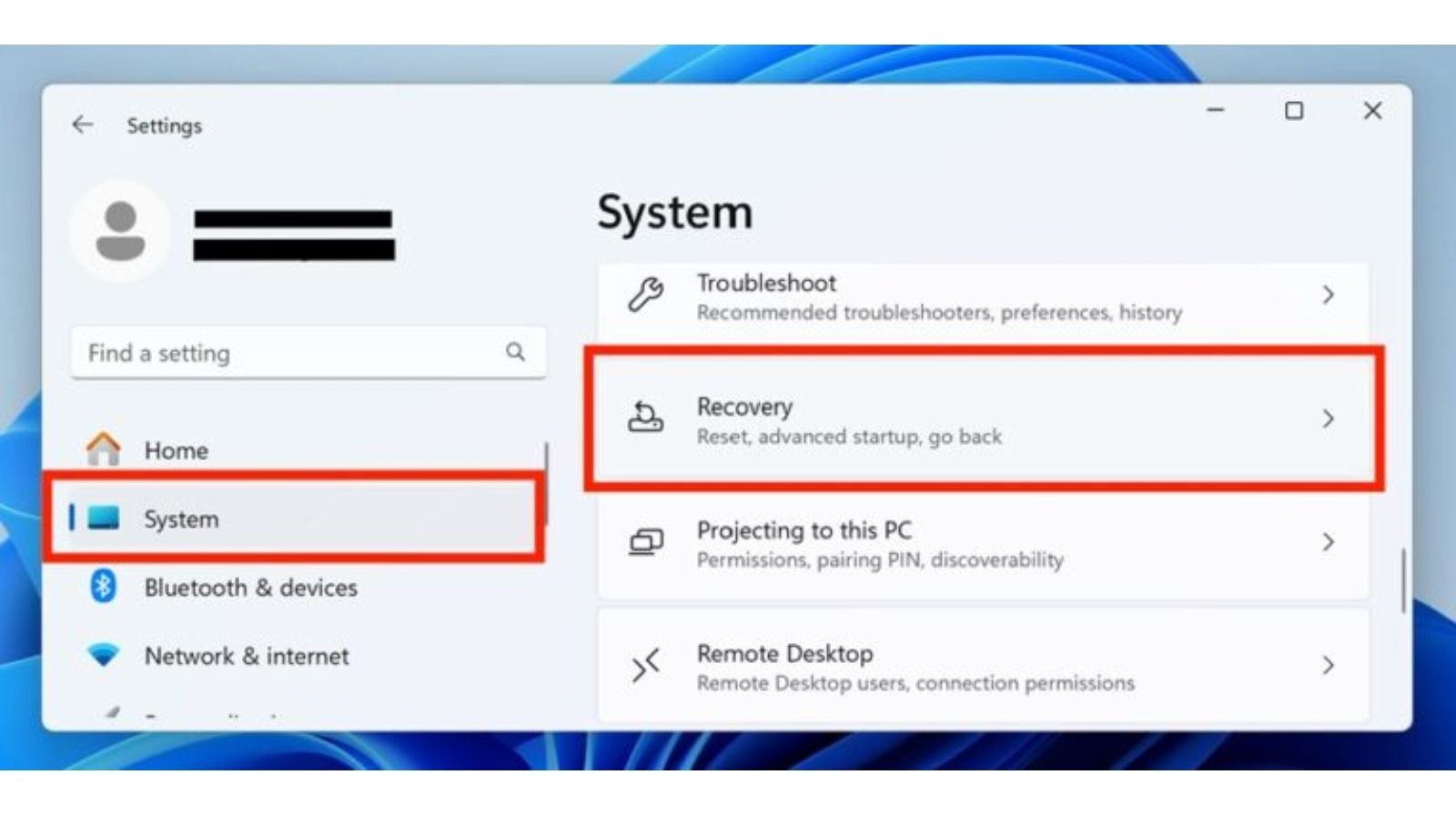
Safe mode in Windows 11 is easy to access, and it can be done in multiple ways depending on the case. The easiest method is the use of the Settings application:
- Go to the open settings and go to System Recovery.
- On the Advanced startup screen, Restart is clicked. After booting up your PC again, you are now required to pick Troubleshoot and advanced options, and then Startup Settings and Restart.
- With another restart, you will have different options for startup. Press the key of Safe Mode (connected or disconnected to the net).
- The second way is by entering the Shift + Restart key combination of the login screen or the Start menu. It is also a sure method of restoring your PC, as it allows access to a safe mode even when your system can not start, and is extremely useful in these situations.
Merits of Safe Mode Windows 11

The benefits of safe mode Windows 11 are not limited to something as simple as troubleshooting. It enables users to do the following tasks efficiently by only allowing the system to run necessary processes:
- Virus and Malware Removal: Viral software is usually installed in the background when the computer is being started. Safe mode blocks the launching of these programs, and thus it is easier to scan and delete threats.
- Driver Troubleshooting: In the event that a newly installed driver is triggering crashes, then safe mode is a way of uninstalling or updating the driver without interference.
- System Restore and Repair: Safe mode gives access to the system restore points, command prompt tools, as well as other recovery programs to repair corrupted files.
- Uninstall Problematic Software:Applications that create conflicts can be safely uninstalled in safe mode without any harm to the overall system stability.
How to use the safe mode in Windows 11 effectively.
Although the safe mode is a very effective tool, its application with proper use guarantees optimum results:
- Backup Data First:Although safe mode is not risky, it is always prudent to save important files first before making changes to the system.
- Note Recent Changes:Keep a track of any software additions, updates, or changes in drivers that took place before the onset of problems.
- Use Minimum Tools:The running of unnecessary tools in troubleshooting should be avoided to ensure that the system is not overworked.
- Leave Decently:You will have to restart your PC before you come back to the usual Windows 11 environment.
Common issues that are resolved using the Safe Mode in Windows 11
Safe mode can be used to tackle many of the issues that mar Windows users. Some examples include:
- Startup Failures: When your PC is not starting, you can normally get to safe mode, where the conflicting driver or service is often ignored.
- Blue Screen of Death (BSOD):Some errors in the system, notably those connected with the drivers, can be identified and corrected in safe mode.
- Slow Performance:Unwanted software or malware that is slowing your machine can be detected, and it can be eliminated.
- System File Corruption: Programs such as sfc /scannow are capable of running well in safe mode to fix corrupted files.
Cautions: When operating under Safe Mode in Windows 11
Even though safe mode is developed to help in troubleshooting, there are some precautions that users should consider:
- Never install new software in safe mode because it might not work properly.
- Always make sure that you make changes that you know, especially in system settings or the registry.
- Also, bear in mind that safe mode with networking may not allow you to use certain features of the network.
Conclusion
Safe mode Windows 11 is a feature that a person cannot do without and wants to keep his/her system healthy and stable. It allows the user to address software conflicts, driver problems, malware, and system corruption with ease because it offers a controlled environment in which they can do diagnostics. As a casual user who has to deal with glitches every now and then, or as an IT expert who has to figure out what is causing some issues, the knowledge and the utilization of safe mode can save you time and effort and, possibly, data loss.
A troubleshooting toolkit must always include a safe mode with Windows 11 so that you can never be caught off guard by system failures. Both frequent users and tech enthusiasts, as well as support specialists, can be informed on how to access and make good use of this feature. Also, it is important to keep in mind that an active attitude towards the maintenance of the system, along with the power of safe mode, can help maintain your Windows 11 PC in the necessary position and ensure its stable and safe operation.
Learning how to use the safe mode in Windows 11, you know not only that you have a means of troubleshooting but peace of mind as well, as you realize that your system issues are solvable without any panic and stress. It is worth making it a habit to venture into this mode every time your system is acting up, and you will have an easier time having a consistent computing experience.
FAQs: Safe Mode Windows 11
What is Safe Mode Windows 11?
Safe Mode Windows 11 is a troubleshooting mode of startups, which only loads necessary drivers and services and assists the users to troubleshoot issues such as Crashes, Software conflicts, and Malware.
Why do we need to use Safe Mode in Windows 11?
It can also be utilized to troubleshoot to correct issues that prevent Windows 11 from entering normal mode, delete malware, delete malicious software or malicious drivers, and perform safe system restores.
What is the start point of safe mode in Windows 11?
It is accessible through Settings System Recovery Advanced startup Restart now or through the Shift + Restart shortcut on the login screen.
What are the Windows 11 safe mode types?
There are three main types:
- Safe mode (minimal drivers and services)
- Safe Mode Networking (installs drive network)
Safe Mode identifies the safe mode with Command Prompt (launches Command Prompt rather than the desktop).
Is it possible to use the internet in Safe Mode?
Yes, you can use Safe Mode with Networking and be able to use the internet and the local network resources.
Safe Mode: Is that the solution to the Blue Screen of Death (BSOD)?
Yes. Safe Mode lets you, of course, troubleshoot and uninstall bad drivers or software, which may be the cause of BSOD errors.
What is the way to leave Safe Mode in Windows 11?
Restart your PC normally. You need to ensure that you do not have the Safe Boot option checked in the Boot tab in case you have used msconfig to put yourself in Safe Mode.
Is it possible to have an antivirus program in safe mode?
Yes. The use of antivirus scan is also possible in the Safe Mode, as most malware software will not work in the Safe Mode.
Will the software installation in Safe Mode work?
Certain software would not install in Safe Mode. After troubleshooting, it is advisable to install or update programs under normal mode.
Will Safe Mode do any damage to my system?
No. Safe Mode is a safe diagnostic tool. Nevertheless, before making changes or deleting drivers/software, it is always advisable to take a copy of the critical files.